Export & Import Data
Secutils.dev allows you to export and import your data for backup, migration between accounts, or configuration management. The export/import feature supports all entity types: scripts, secrets, responders (with history), certificate templates, private keys, content security policies, trackers (page and API, with history), and user settings.
Getting started
Navigate to Settings → Account to access the export and import functionality.
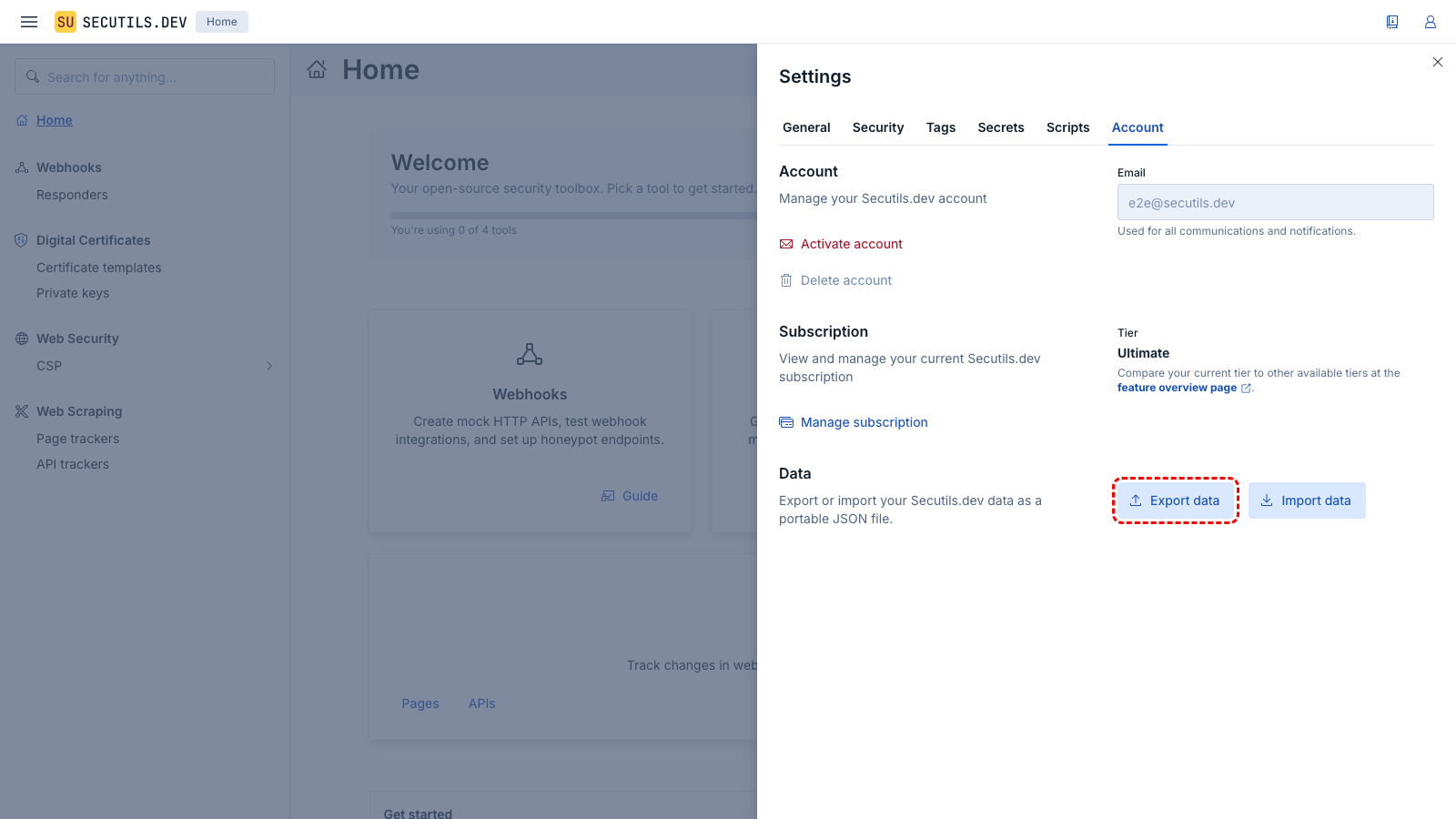
.secutils.json file.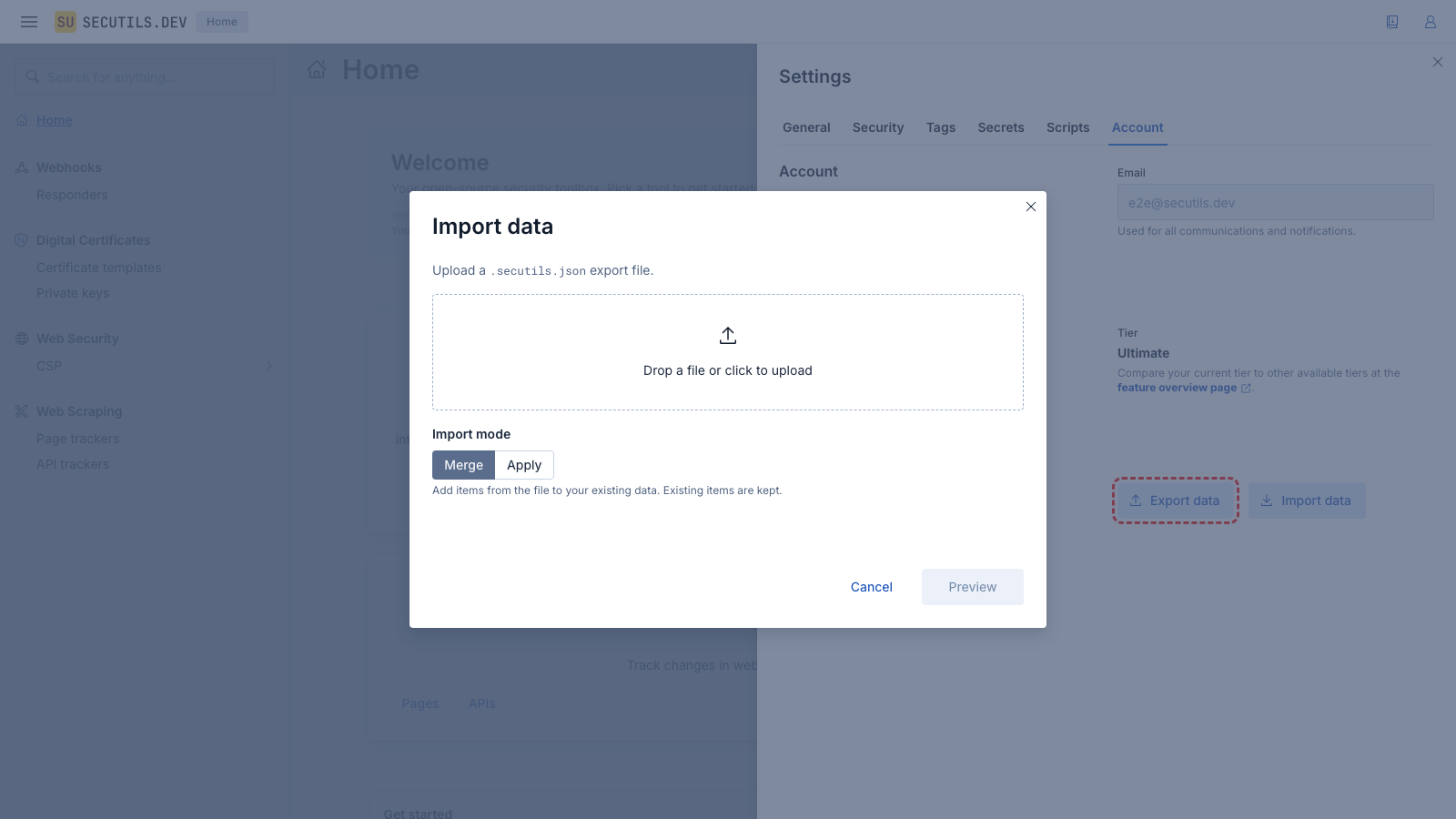
.secutils.json file, choose an import mode, and follow the guided steps to import your data.Export
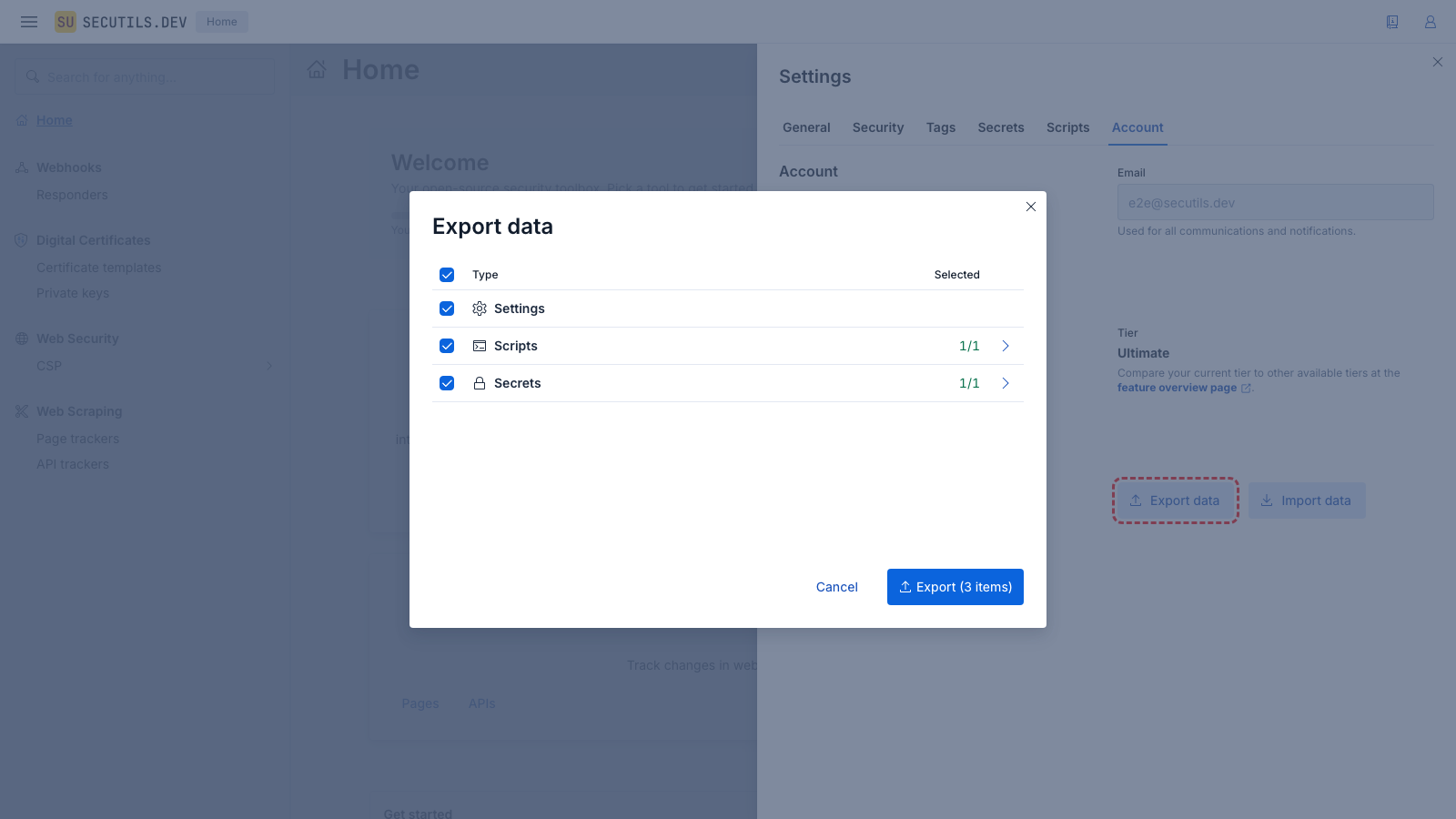
The export feature lets you selectively choose which entities to include in the export file. You can export:
- Scripts - responder and tracker scripts
- Secrets - secret names and, optionally, passphrase-encrypted secret values
- Responders - webhook responders, optionally including their request history
- Certificate templates - X.509 certificate generation templates
- Private keys - cryptographic private keys
- CSP - content security policy configurations
- Page trackers - web page change trackers, optionally including revision history
- API trackers - API endpoint trackers, optionally including revision history
- Settings - user preferences such as UI theme and sidebar state
When exporting secrets, you can optionally include their values by enabling Include secret values and providing a passphrase (minimum 8 characters). The values are encrypted using AES-256-GCM with an Argon2id-derived key, so the export file is safe to store - but you must remember the passphrase to import the values later.
The export produces a JSON file with the .secutils.json extension that contains all selected entities and their configuration.
Import
When importing data, you can choose between two modes:
Merge mode (default)
Merge adds items from the import file to your existing data. Your current data is preserved - nothing is deleted. If an imported item has the same name as an existing item, you can resolve the conflict by:
- Rename - import the item with a
(Copy N)suffix appended to its name - Overwrite - replace the existing item with the imported one
- Skip - keep the existing item and skip the import
Apply mode
Apply treats the import file as the desired state and synchronizes your data to match it. Items not in the file may be removed (with your explicit confirmation). This mode is useful for:
- Configuration-as-code - maintain your Secutils.dev configuration in a repository and apply it
- Environment synchronization - keep multiple accounts in sync
- Drift detection - compare your current state against a known-good configuration
Apply mode can delete existing data. Always review the preview carefully before confirming an apply operation.
Export file format
The export file uses JSON format with a version field for forward compatibility:
{
  "version": 1,
  "exportedAt": 1740000000,
  "data": {
    "scripts": [...],
    "secrets": [...],
    "responders": [...],
    "certificateTemplates": [...],
    "privateKeys": [...],
    "contentSecurityPolicies": [...],
    "pageTrackers": [...],
    "apiTrackers": [...],
    "settings": { "common.uiTheme": "dark", ... }
  }
}
Only the entity categories you selected during export will be present in the data object.
Limitations
- Maximum import file size: 10 MB
- Entity counts are subject to your subscription tier limits
- Secret values are only included if you explicitly opt in and provide a passphrase during export
- Tracker scheduling state (next run time, last run time) is not exported - previously scheduled trackers will be rescheduled after import