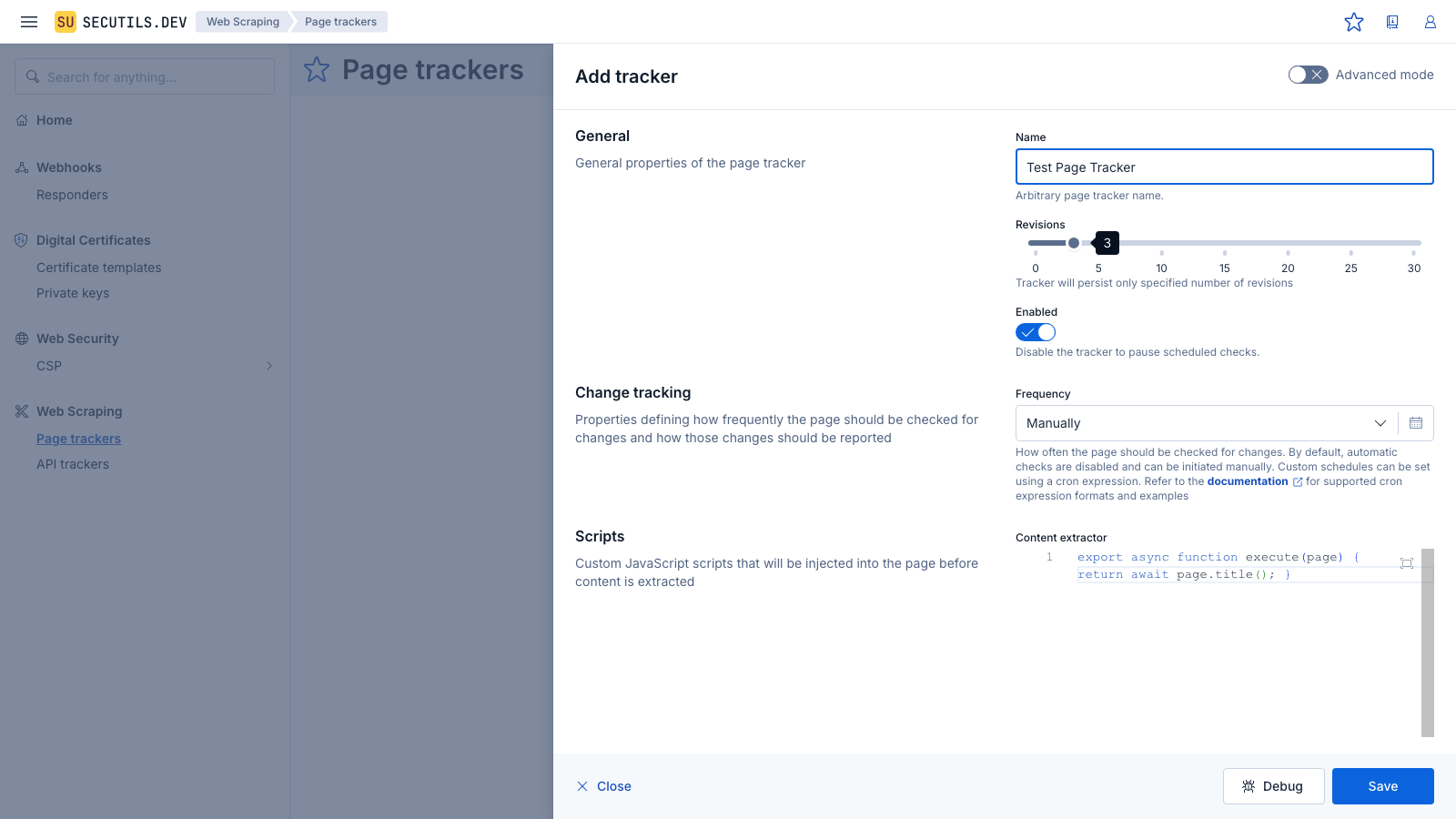
User Scripts
Secutils.dev lets you save reusable JavaScript snippets as user scripts and import them directly into responder scripts, API tracker extractor/configurator scripts, and page tracker extractor scripts. Instead of duplicating the same logic in every responder or tracker, you write it once in Workspace → Scripts and import it wherever you need it.
Script types
Each script has a type that determines which contexts it can be imported in:
| Type | Label | Can be imported in |
|---|---|---|
responder | Responder | Responder scripts |
api_extractor | API Extractor | API tracker data extractor scripts |
api_configurator | API Configurator | API tracker request configurator scripts |
page_extractor | Page Extractor | Page tracker content extractor scripts |
universal | Universal | Any context |
When you open the import modal in an editor, only scripts compatible with that context are shown.
Managing scripts
Navigate to Workspace → Scripts in the sidebar to create and manage your scripts.
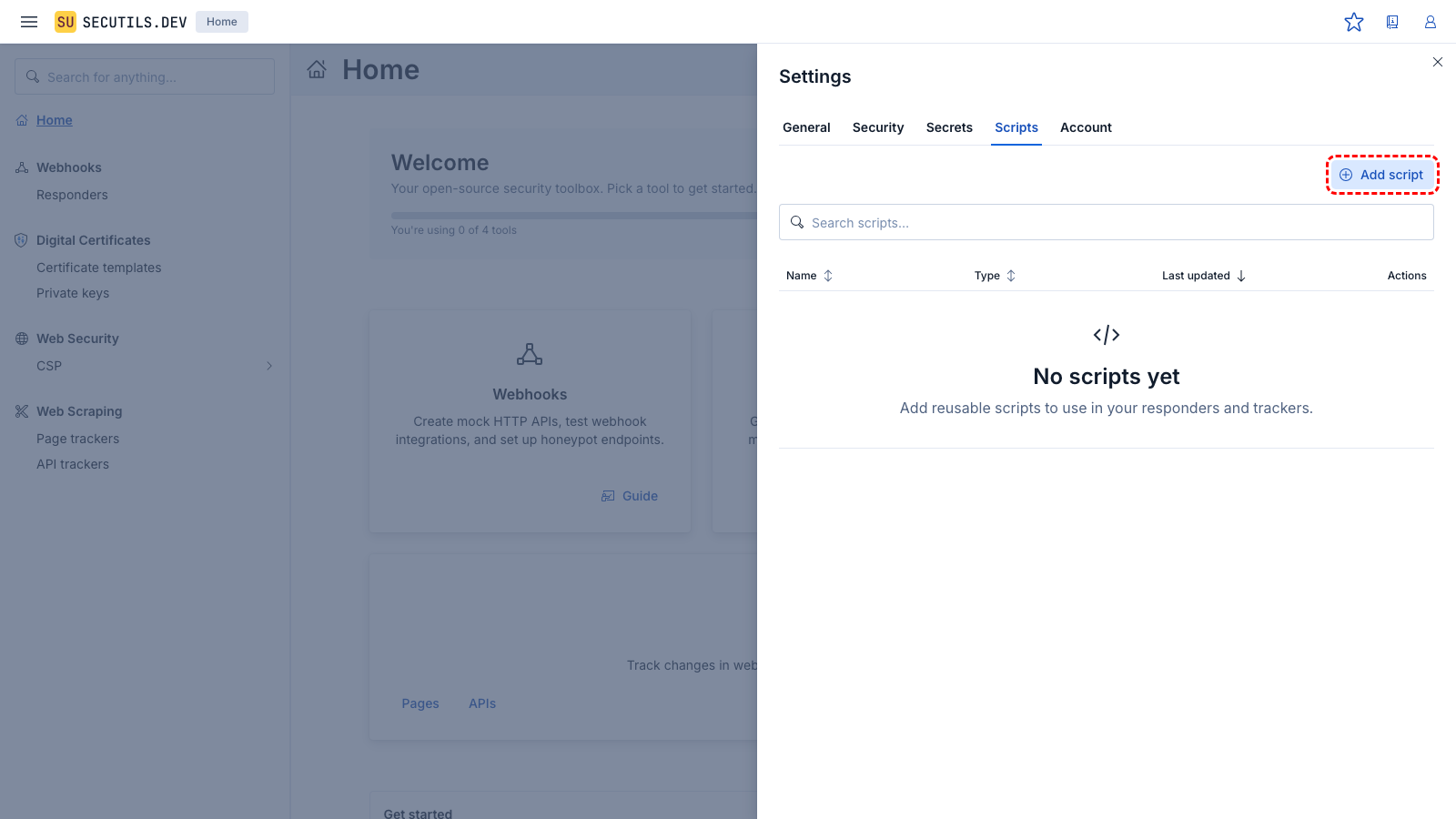
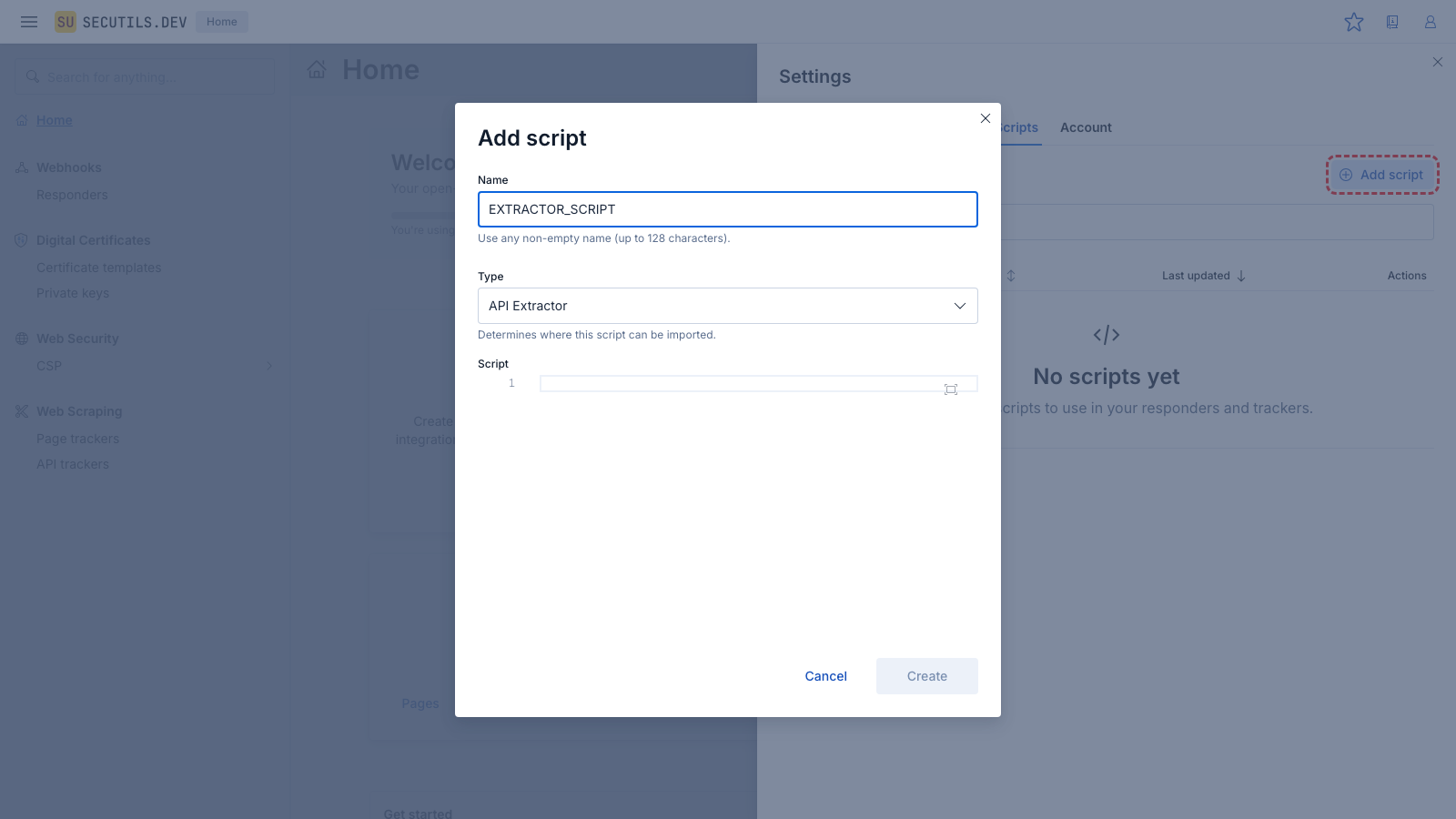
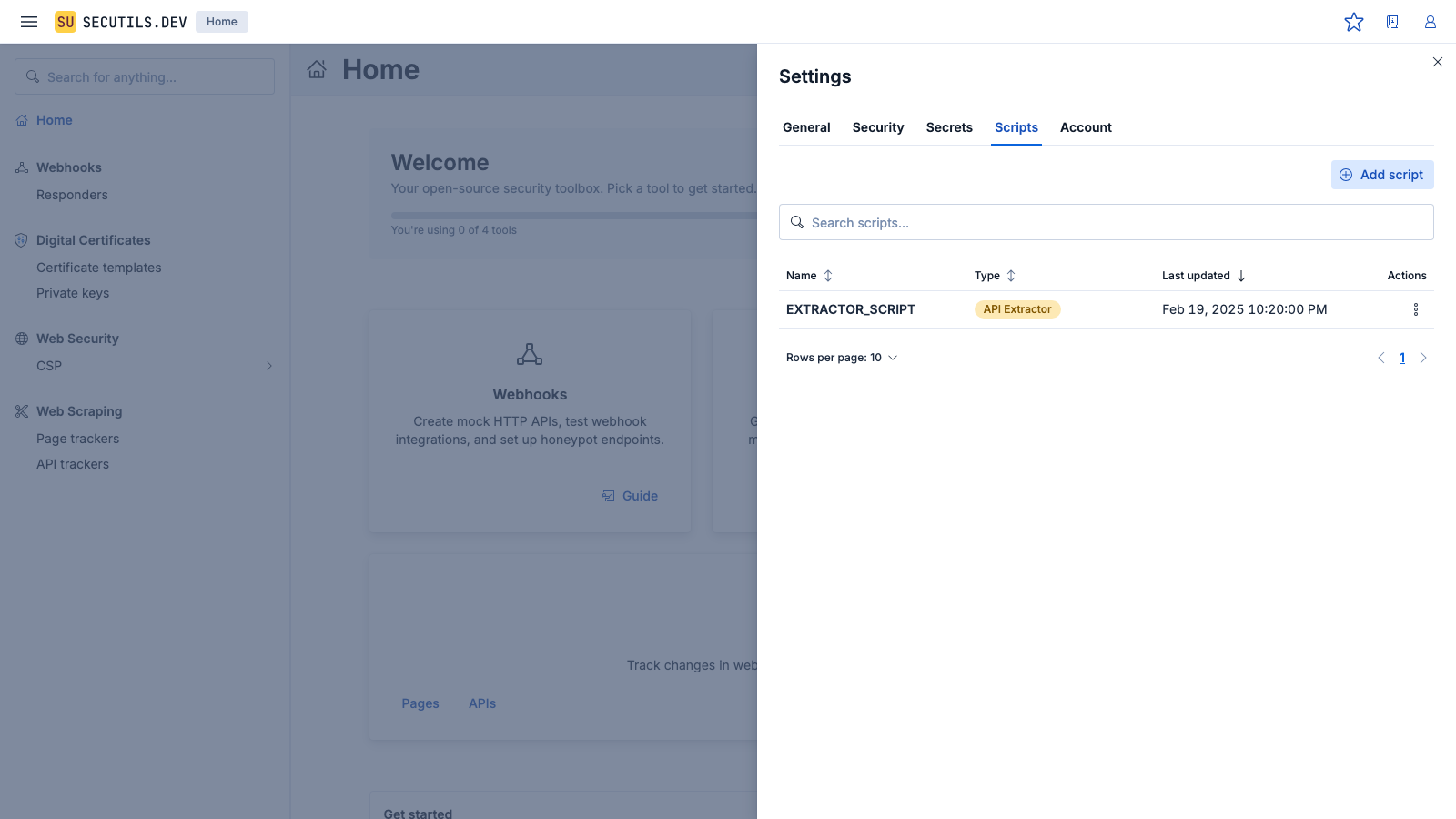
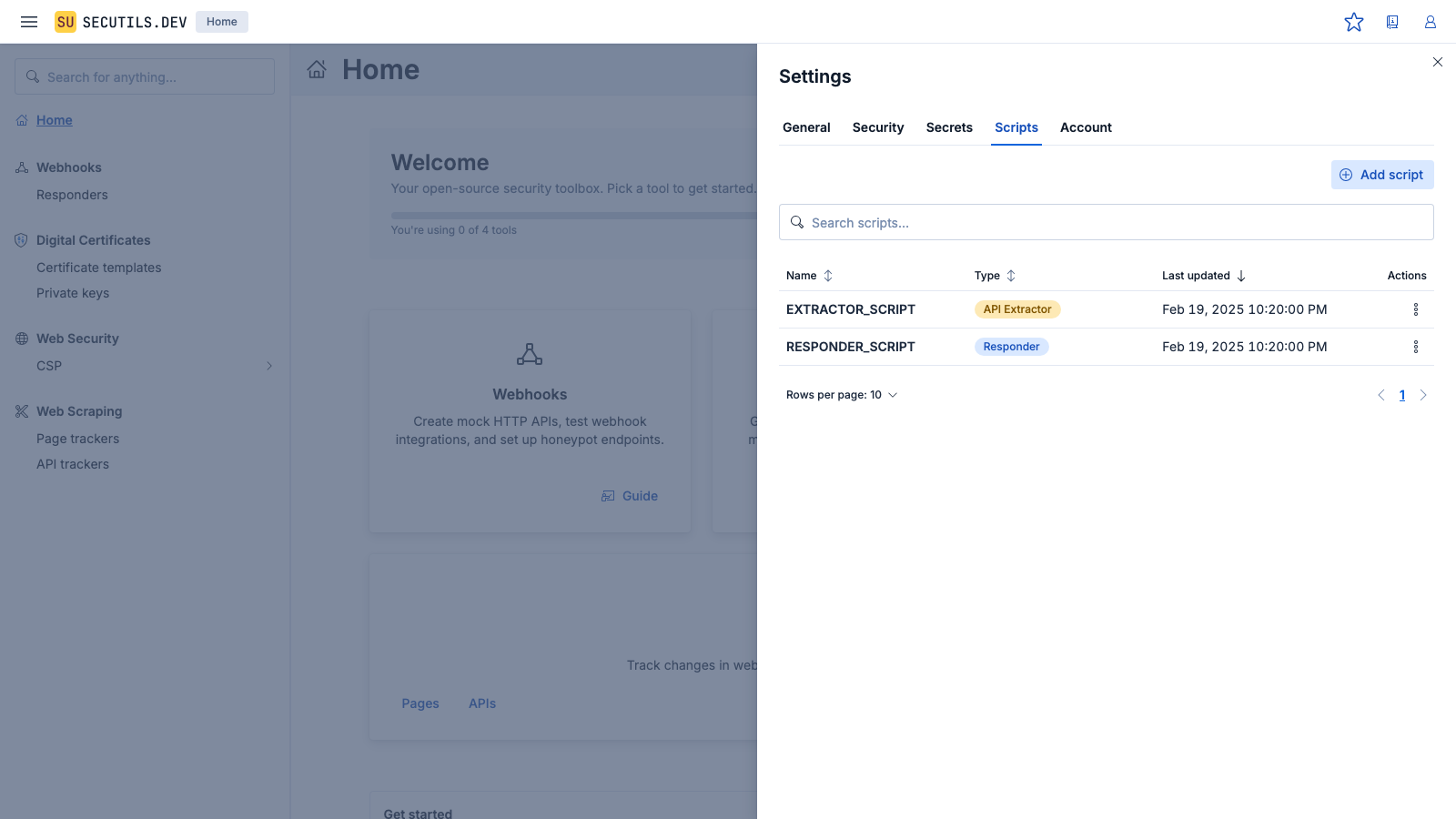
Naming rules
- Must start with a letter (a–z, A–Z)
- Can contain letters, digits, underscores (
_), and hyphens (-) - Maximum 128 characters
Limits
- Up to 100 scripts per user (configurable per subscription tier)
- Maximum script content size: 50 KB
Importing a script into a responder
When you create or edit a responder with Advanced mode enabled, the Script editor exposes an Import action in its toolbar. Clicking it opens a modal listing all scripts whose type is responder or universal.
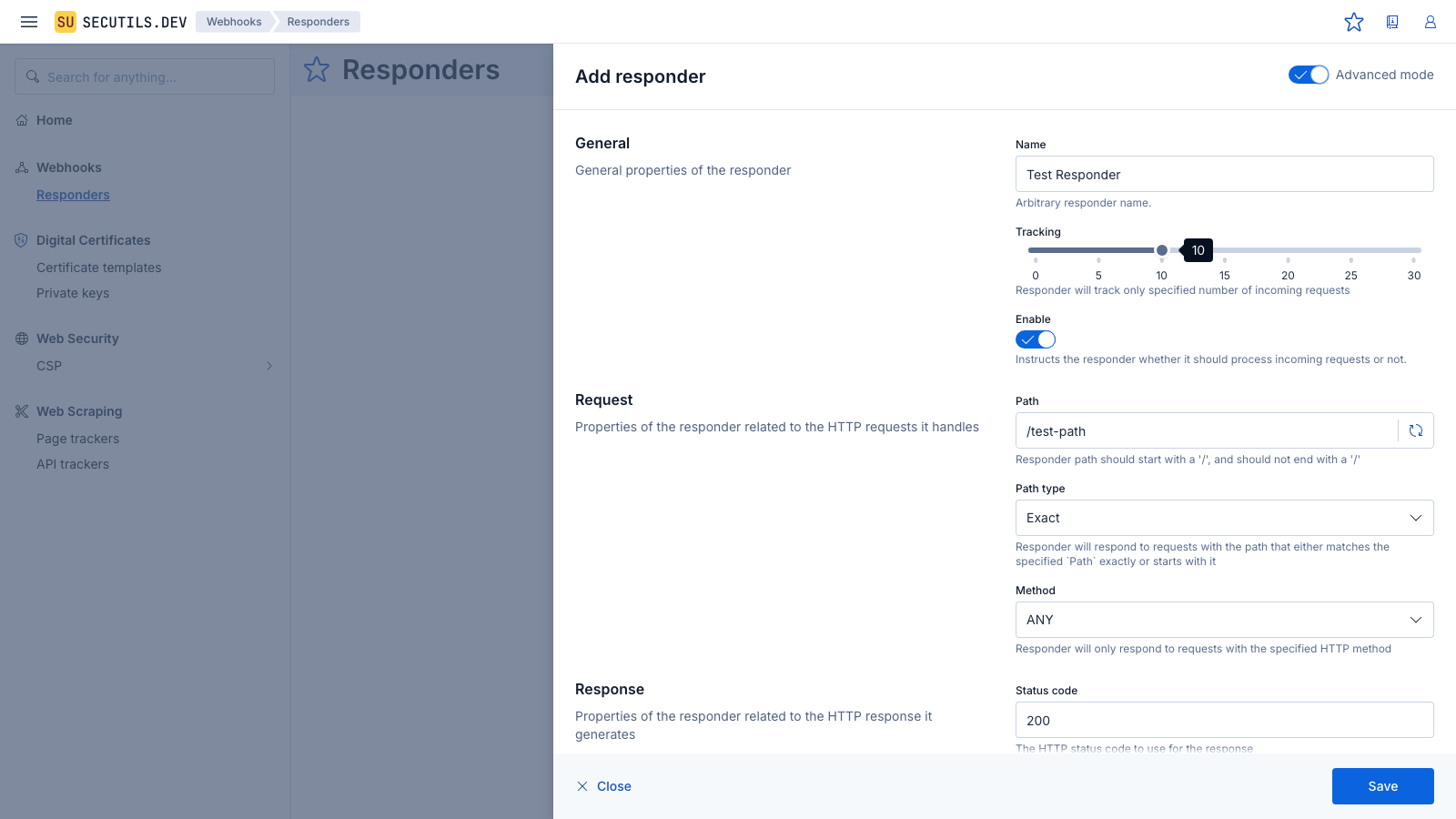
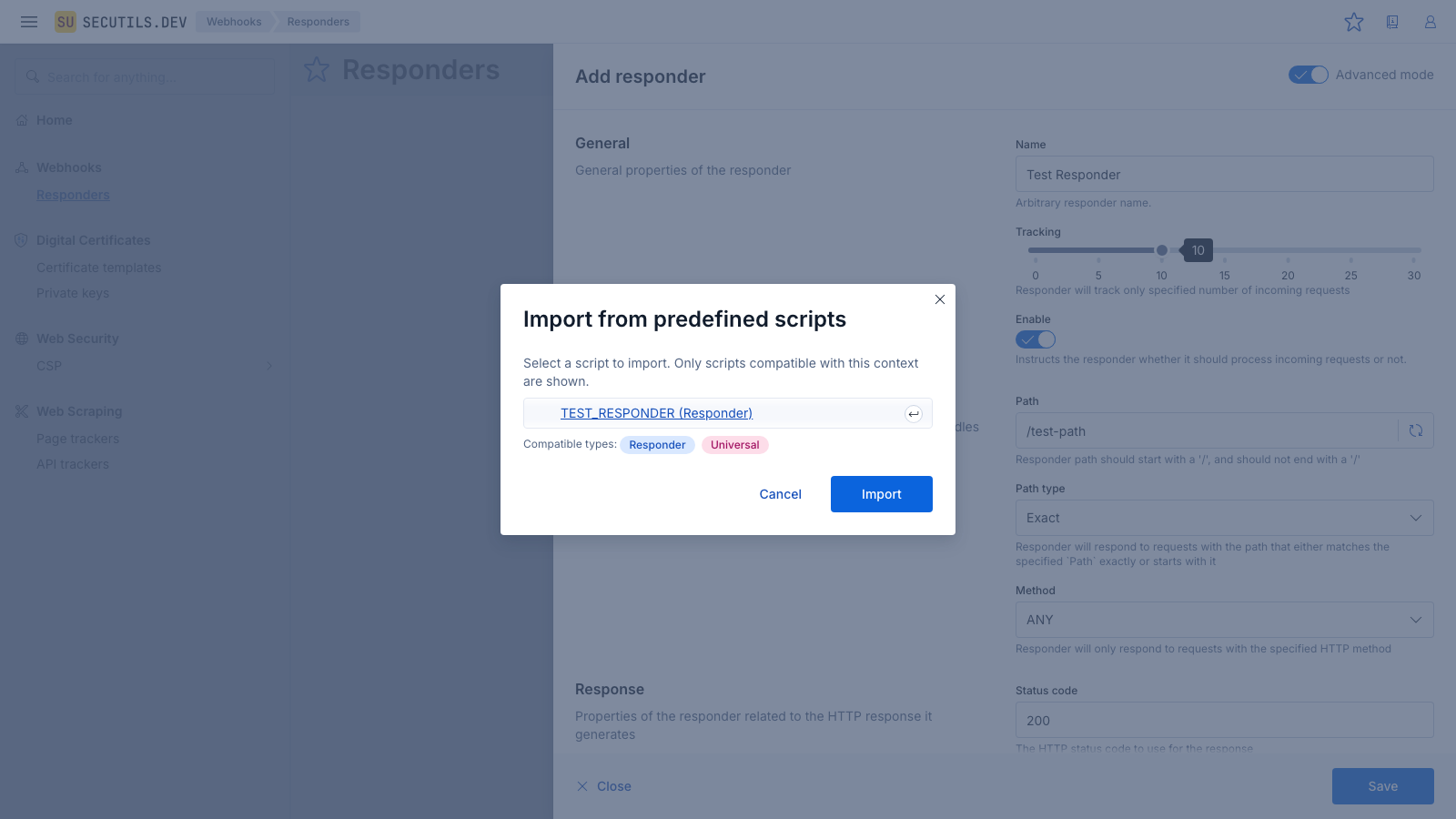
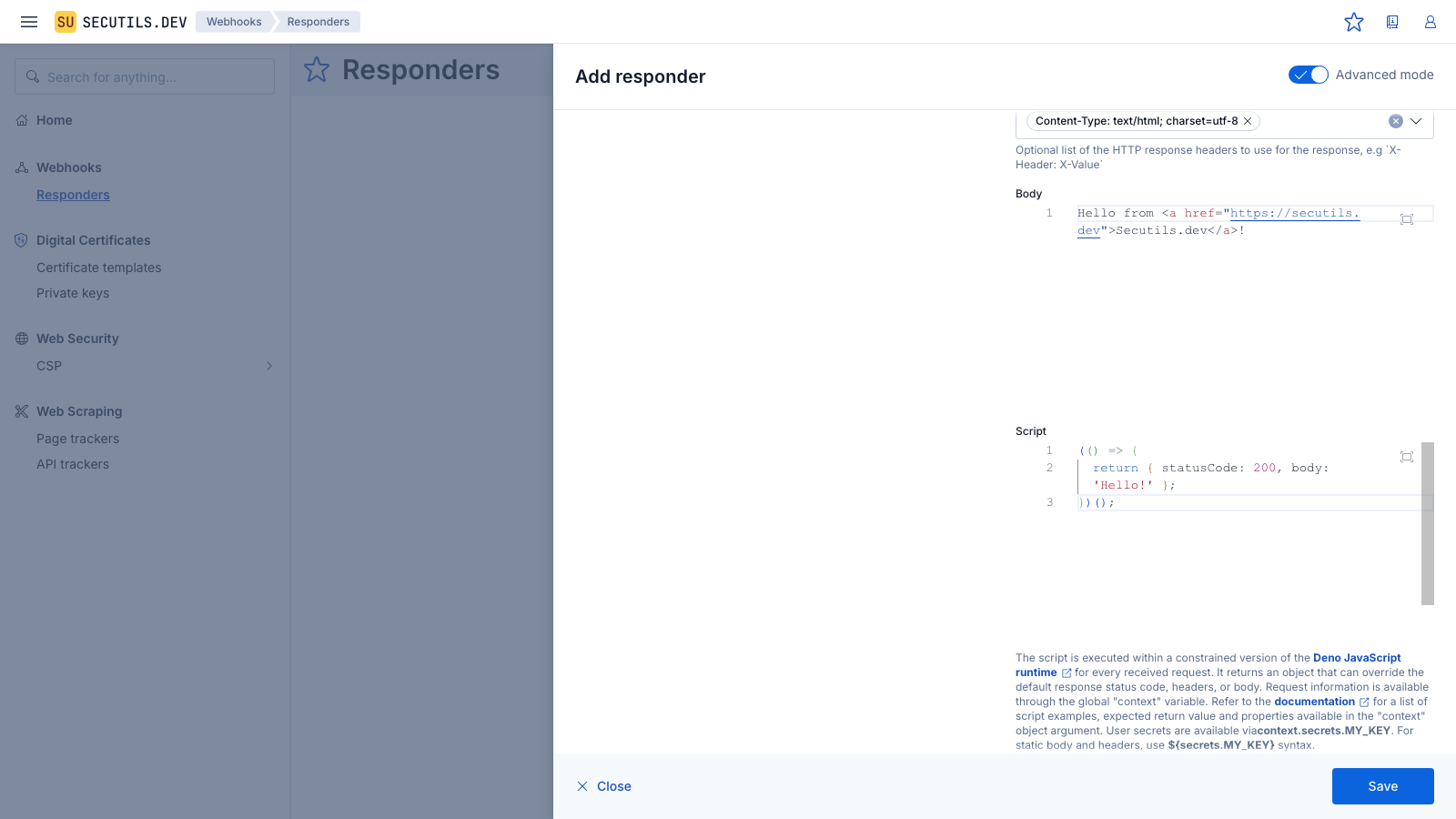
Importing a script copies its content into the editor at the time of import. Subsequent edits to the original script in Workspace → Scripts do not automatically update responders or trackers that have already imported it.
Importing a script into an API tracker
API tracker extractor and configurator editors each expose the same Import action. The modal shows only api_extractor, api_configurator, or universal scripts, depending on which editor triggered the import.
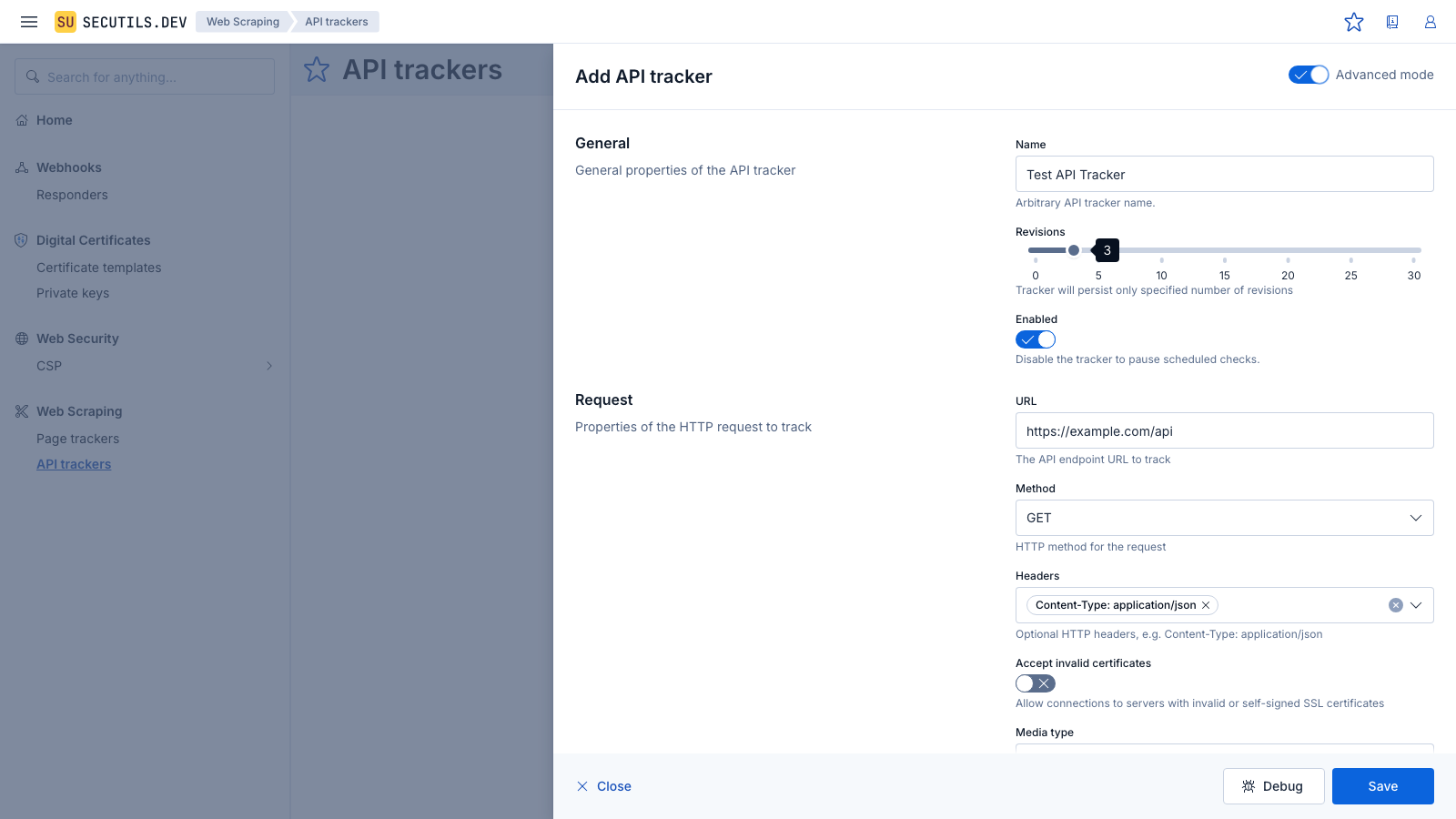
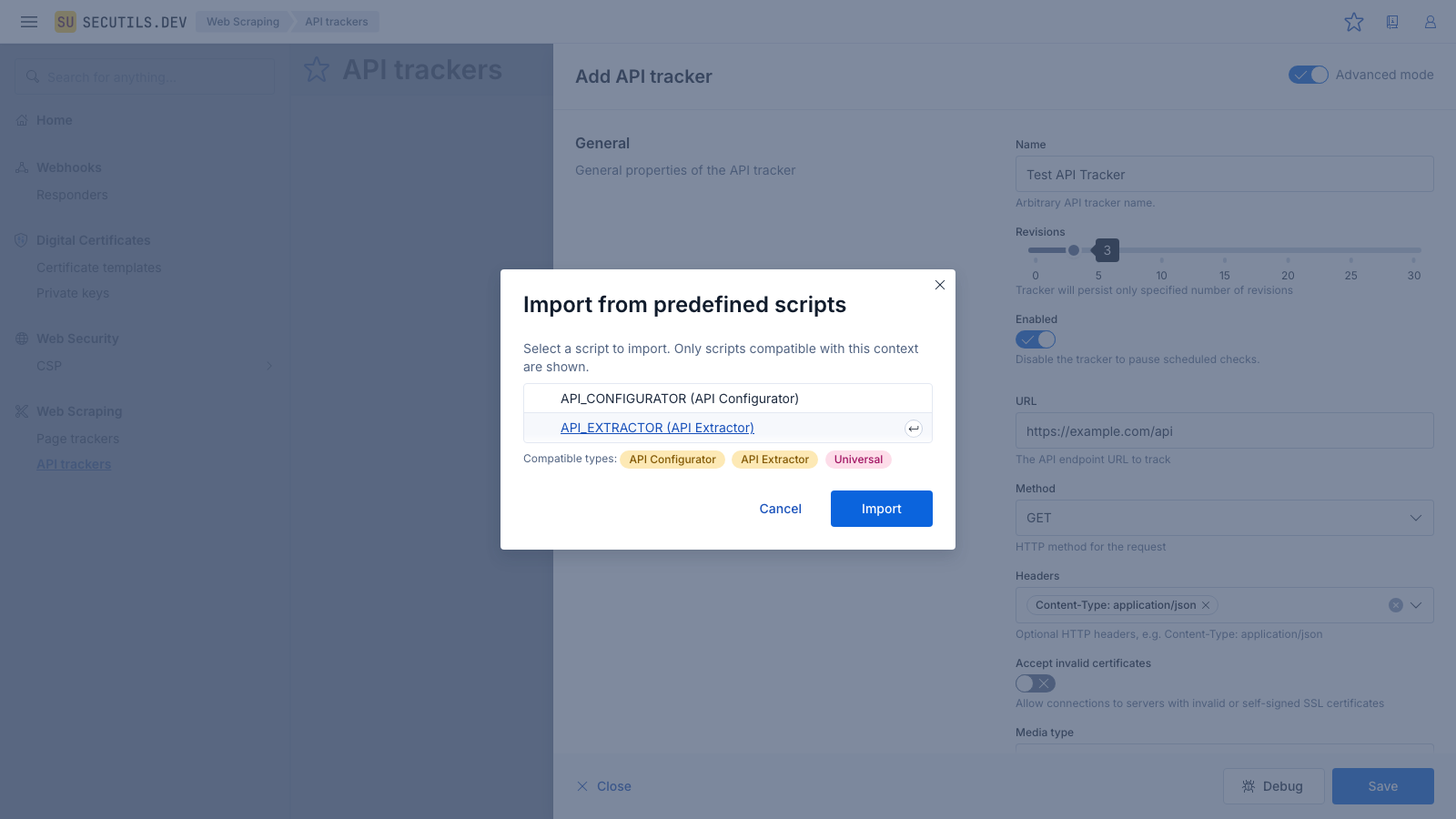
api_extractor, api_configurator, or universal) are listed.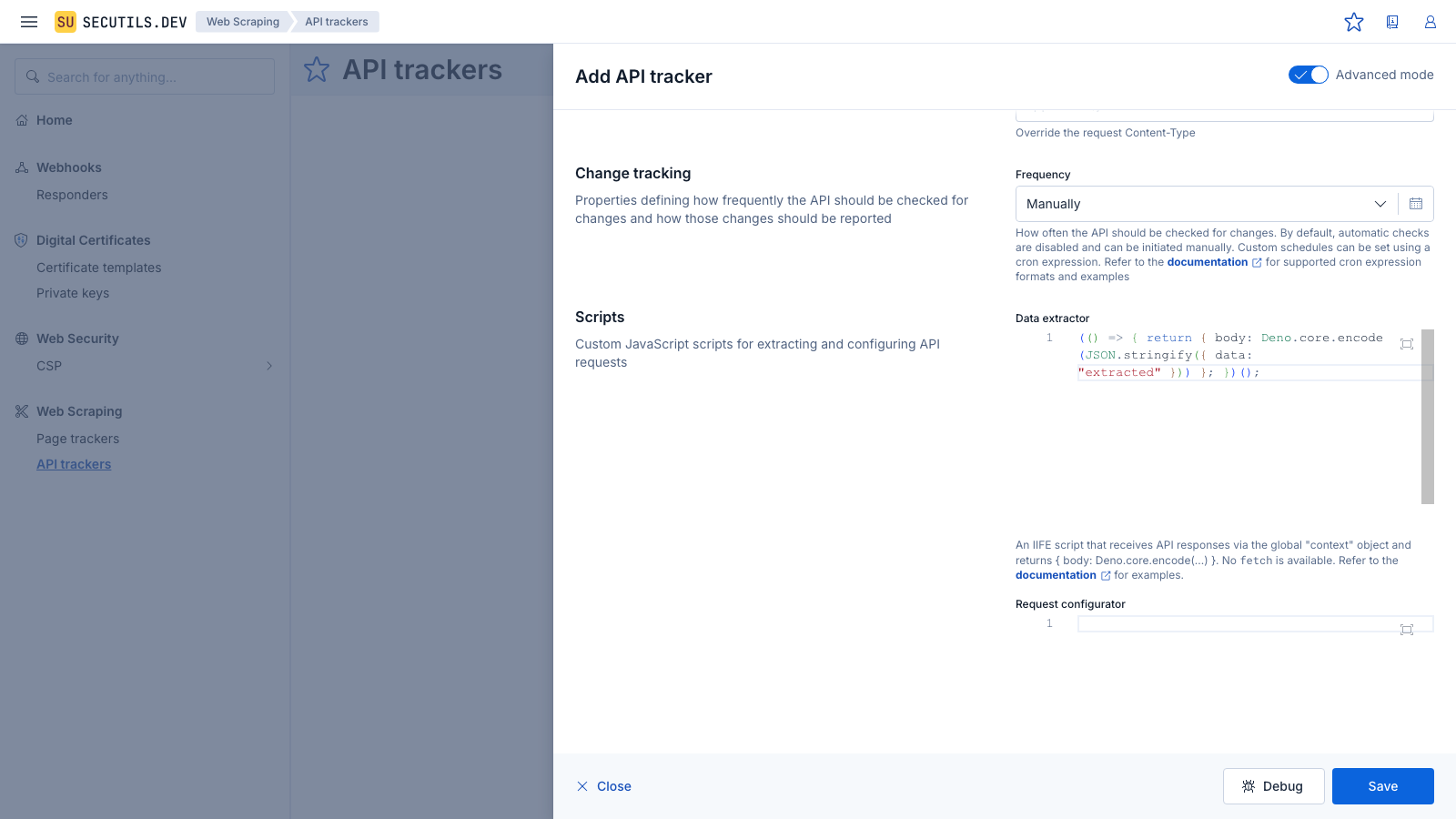
Importing a script into a page tracker
The page tracker Content extractor editor works the same way. The import modal shows only page_extractor or universal scripts.
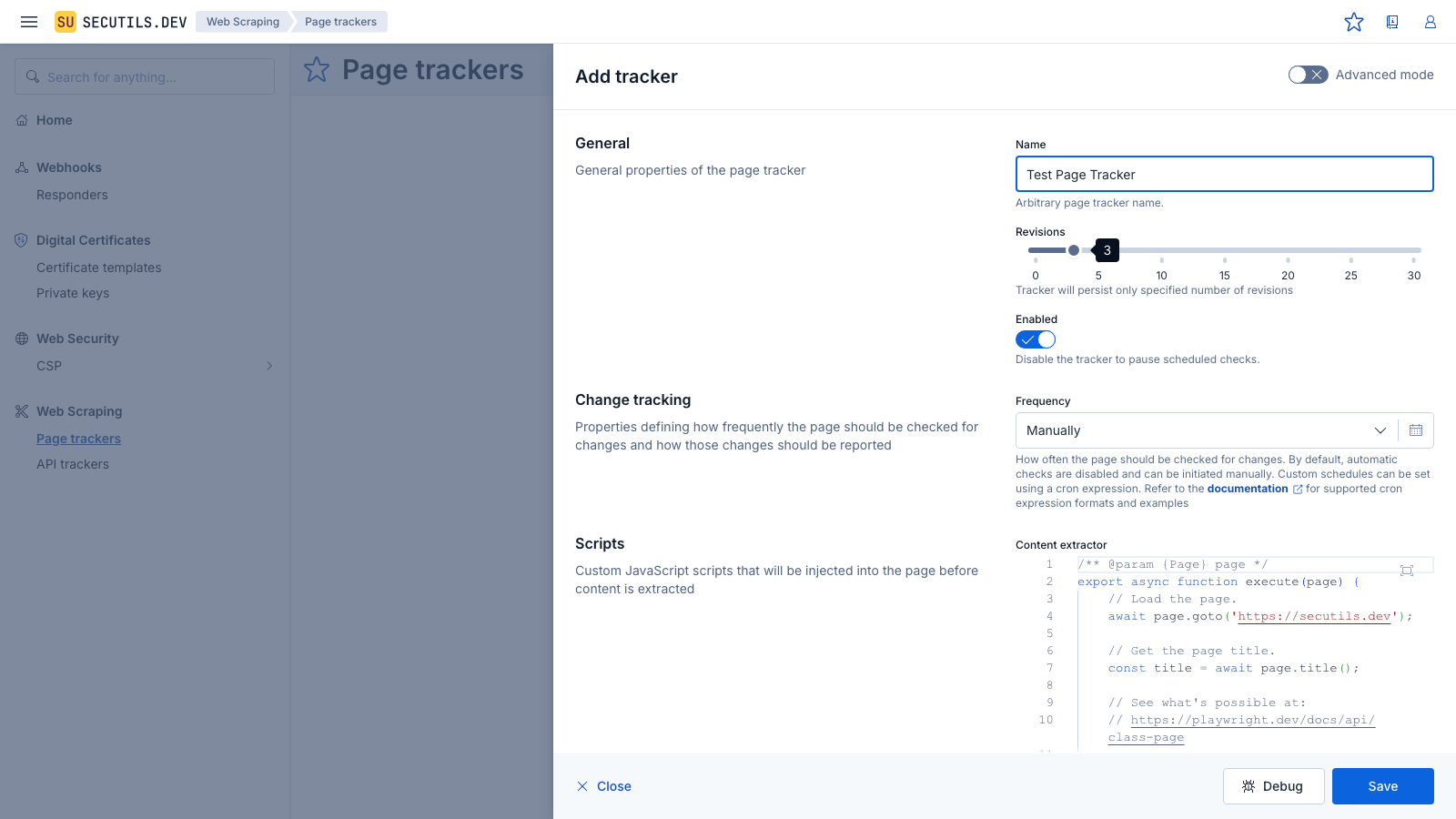
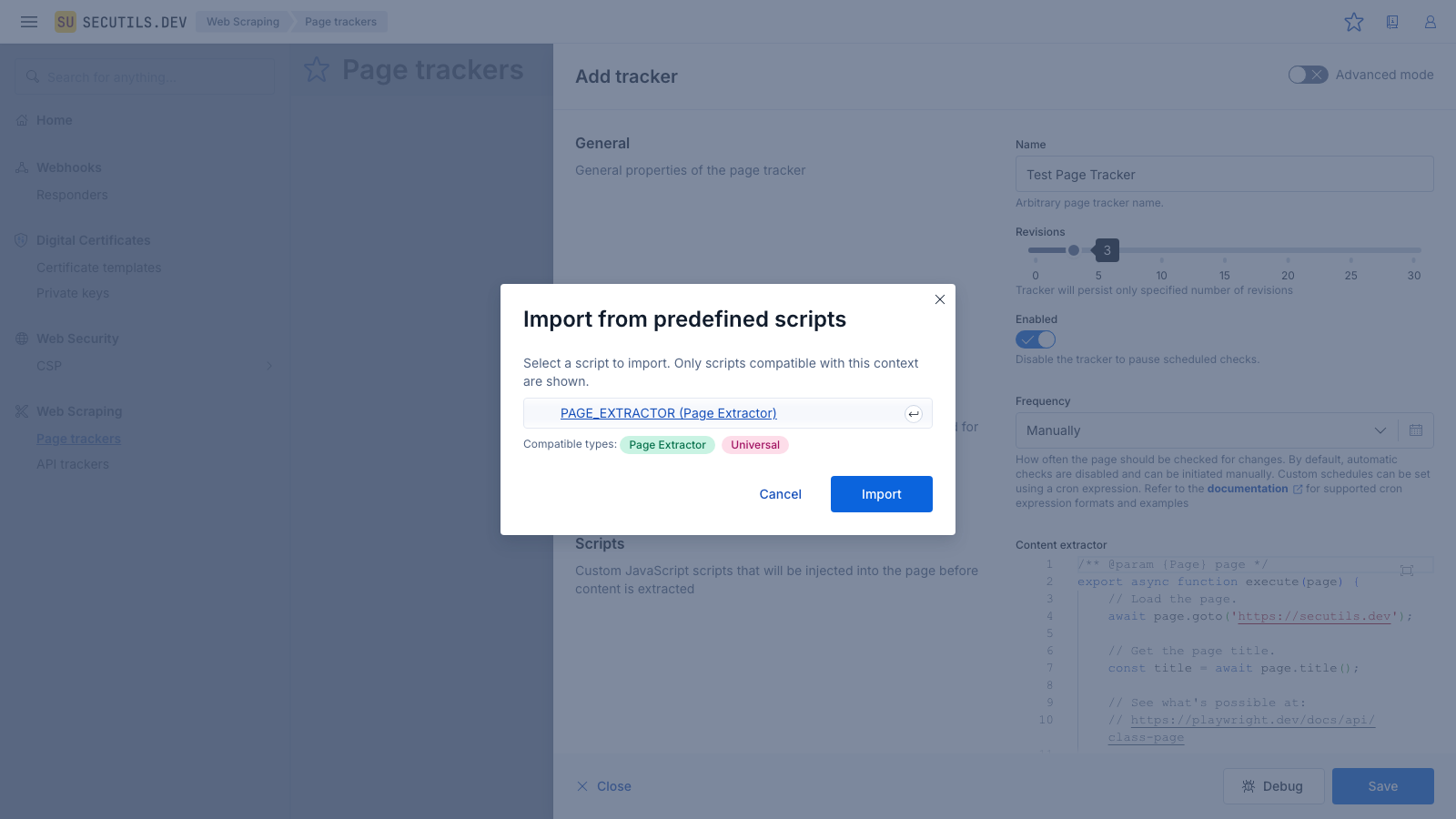
page_extractor and universal scripts are listed.